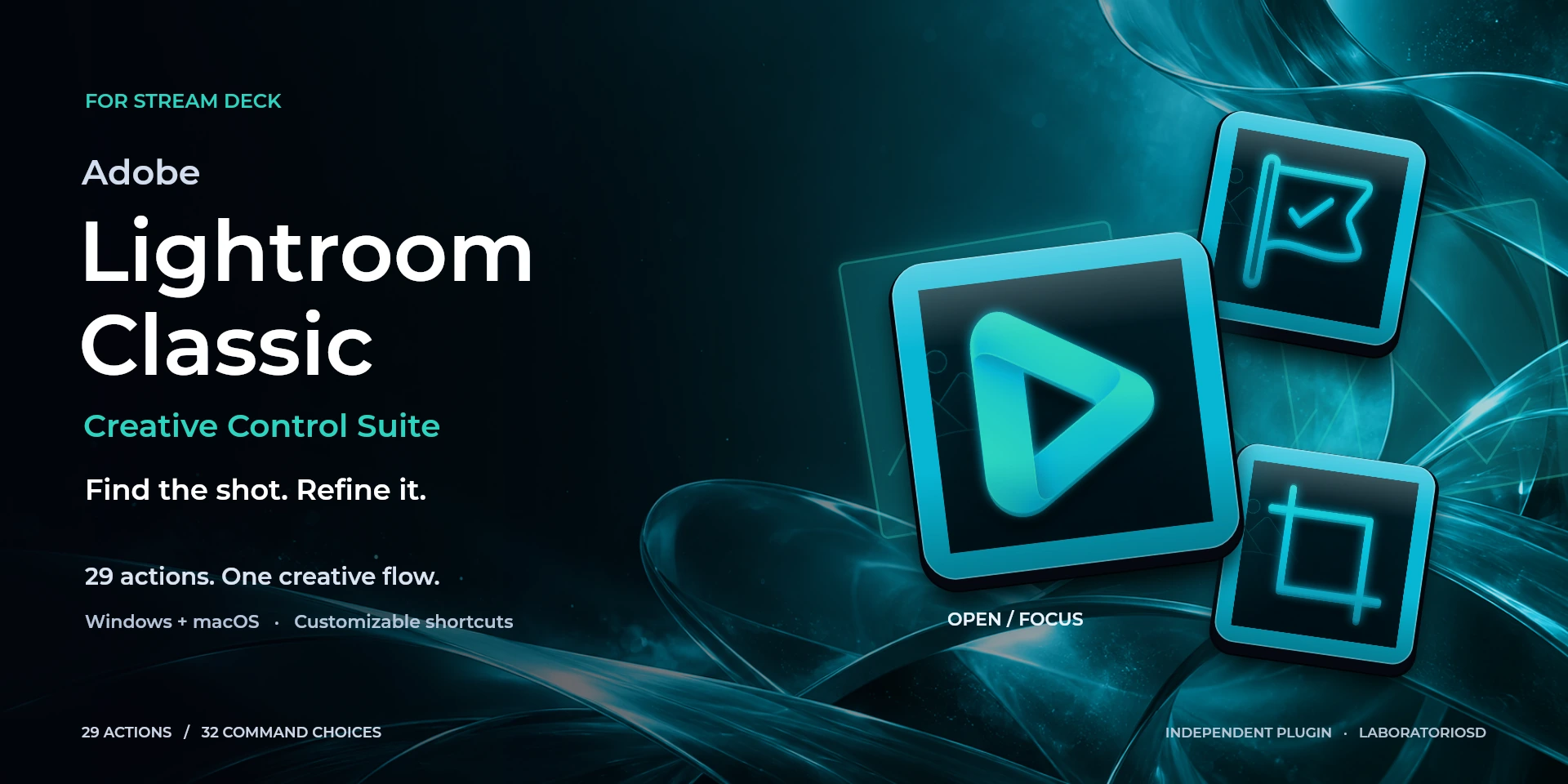

Adobe Lightroom Classic Creative Control Suite
Cull photos with flags and ratings, compare edits and adjust your selection in Adobe Lightroom Classic.
Description
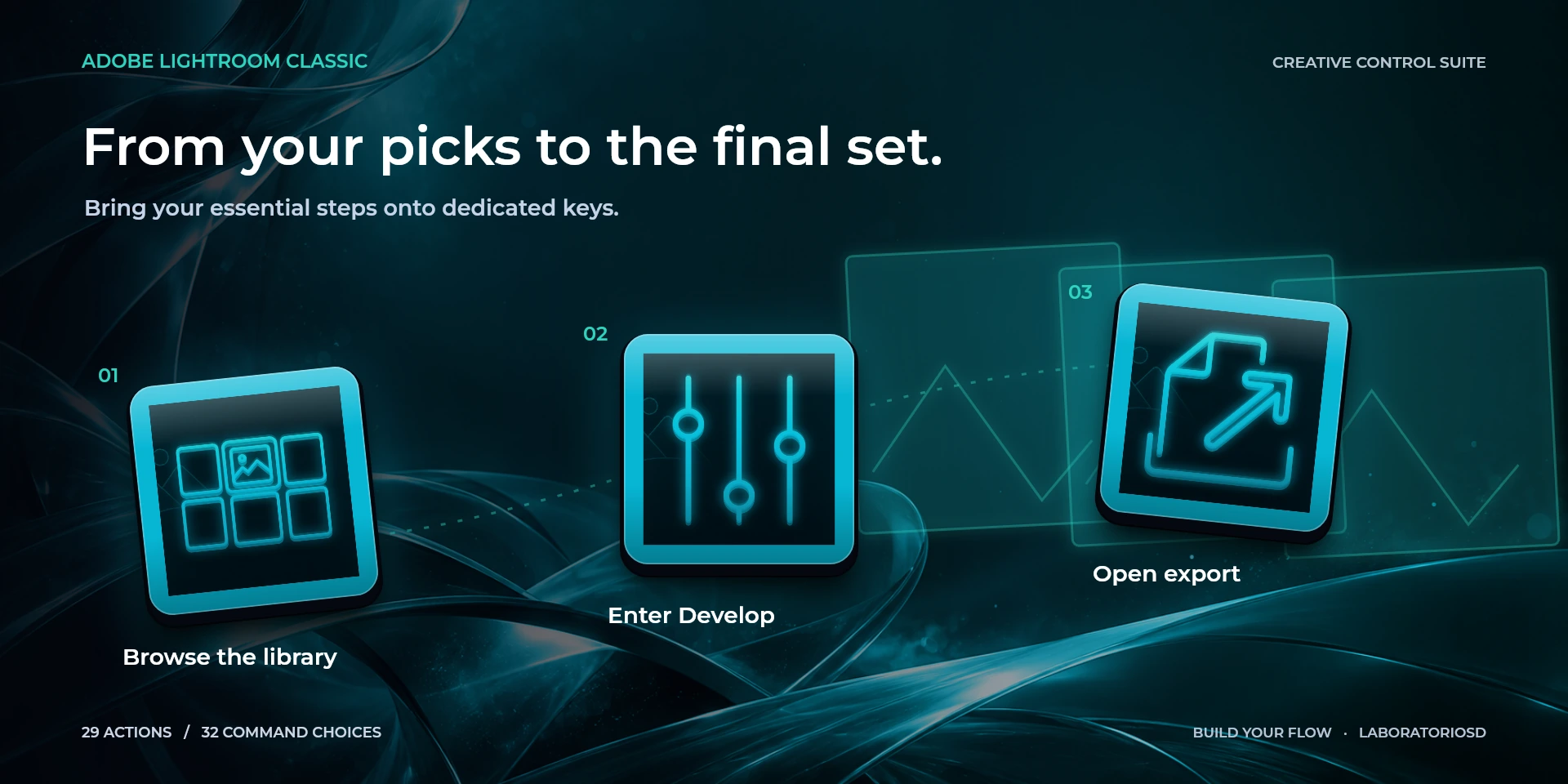
Move from culling to a closer edit without losing your place in a shoot. Switch Library and Develop views, compare photos, apply pick or reject flags and rate images with stars. Reach crop, healing, before-and-after and export, with more commands for labels and develop settings in the library. One dial adjusts the currently selected control; the other changes photo zoom. Choose the photograph, module and adjustment before turning. This is for Lightroom Classic on desktop, and the adjustment dial does not detect which slider you intended or analyze the photograph. Adobe Lightroom Classic Creative Control Suite provides 29 actions to open or focus the application, run configurable shortcuts, and control frequent tasks from Stream Deck. It works locally and requires no accounts, Adobe credentials, or external services.
Features
- Cull photos with flags and ratings, compare edits and adjust your selection in Adobe Lightroom Classic.
- 29 actions built specifically for Adobe Lightroom Classic
- Configurable shortcut for each action
- Three Encoder actions, including a fully configurable dial
- Open or focus Adobe Lightroom Classic
- Local processing with no accounts or first-party telemetry
- Windows 11 or later and macOS 13 or later
- Original visual system created for Creative Controls
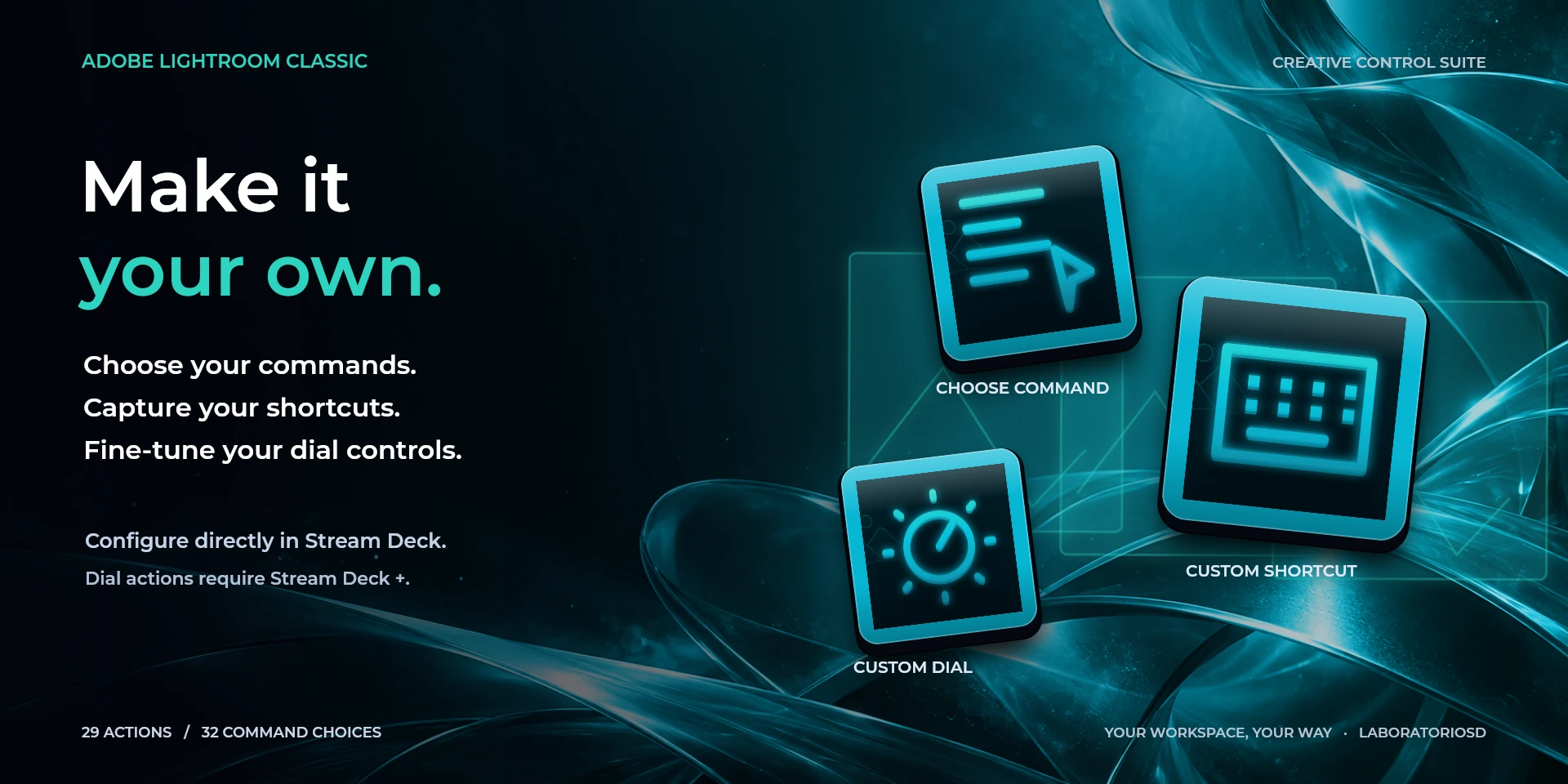
- Three configurable actions: Choose Command, Custom Shortcut, and Custom Dial
- Dynamic command icons and optional labels up to 12 characters
- Interface available in eight locales: English, Spanish, German, French, Japanese, Korean, Simplified Chinese, and Traditional Chinese
Available actions (29)
 Open / Focus Adobe Lightroom ClassicOpen Adobe Lightroom Classic, or bring it to the foreground when it is already running.
  LibraryRun “Library” in Adobe Lightroom Classic with the configured shortcut.
  DevelopRun “Develop” in Adobe Lightroom Classic with the configured shortcut.
  Loupe ViewRun “Loupe View” in Adobe Lightroom Classic with the configured shortcut.
  Compare ViewRun “Compare View” in Adobe Lightroom Classic with the configured shortcut.
  Survey ViewRun “Survey View” in Adobe Lightroom Classic with the configured shortcut.
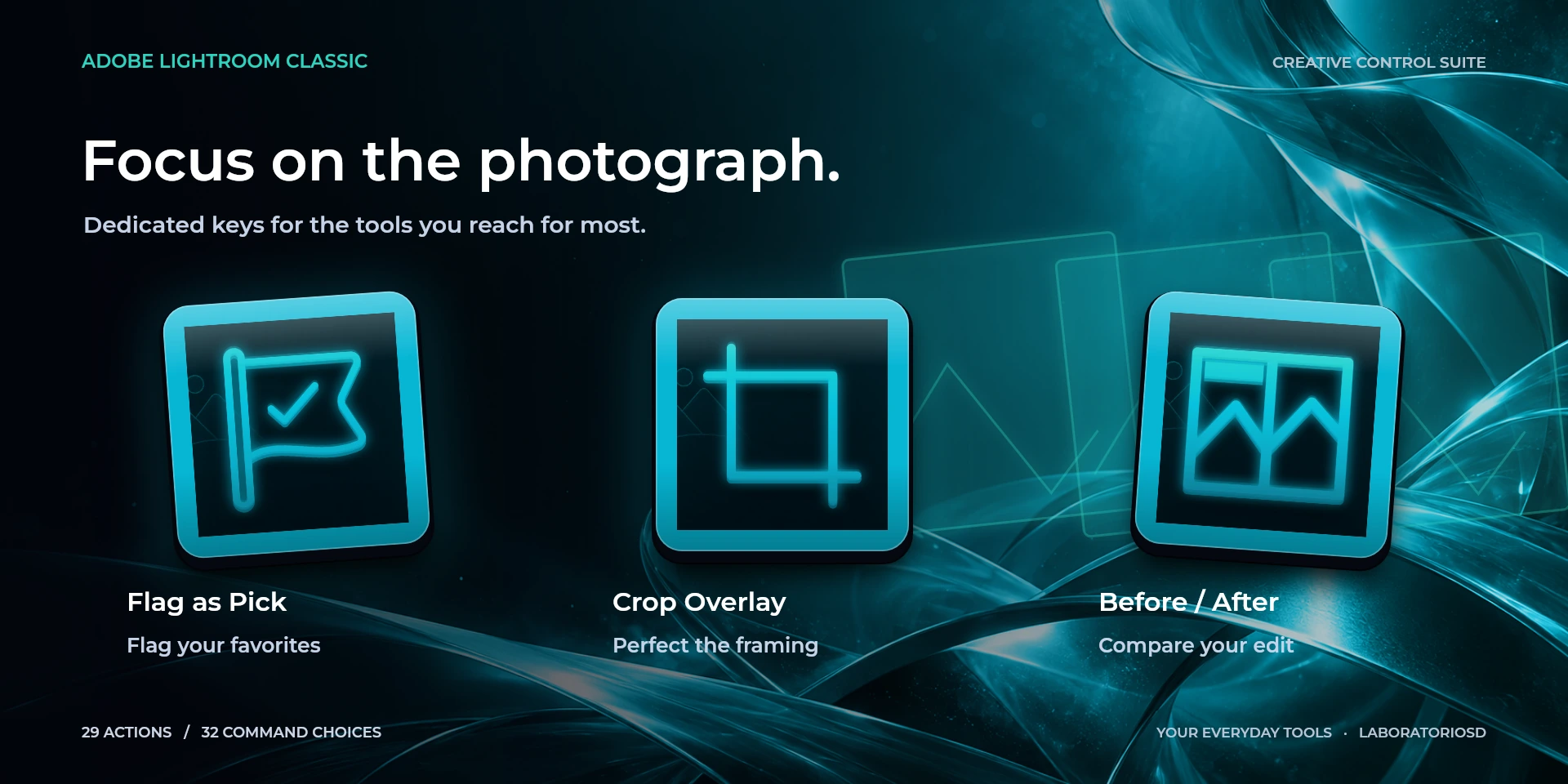
  Flag as PickRun “Flag as Pick” in Adobe Lightroom Classic with the configured shortcut.
  Flag as RejectRun “Flag as Reject” in Adobe Lightroom Classic with the configured shortcut.
  Remove FlagRun “Remove Flag” in Adobe Lightroom Classic with the configured shortcut.
  Rate 1 StarRun “Rate 1 Star” in Adobe Lightroom Classic with the configured shortcut.
  Rate 2 StarsRun “Rate 2 Stars” in Adobe Lightroom Classic with the configured shortcut.
  Rate 3 StarsRun “Rate 3 Stars” in Adobe Lightroom Classic with the configured shortcut.
  Rate 4 StarsRun “Rate 4 Stars” in Adobe Lightroom Classic with the configured shortcut.
  Rate 5 StarsRun “Rate 5 Stars” in Adobe Lightroom Classic with the configured shortcut.
  Crop OverlayRun “Crop Overlay” in Adobe Lightroom Classic with the configured shortcut.
  Healing ToolRun “Healing Tool” in Adobe Lightroom Classic with the configured shortcut.
  Before / AfterRun “Before / After” in Adobe Lightroom Classic with the configured shortcut.
  ExportRun “Export” in Adobe Lightroom Classic with the configured shortcut.
  UndoRun “Undo” in Adobe Lightroom Classic with the configured shortcut.
  Selected AdjustmentIn Develop, click the adjustment's numeric value before turning Selected Adjustment. The dial decreases or increases that value on Windows and macOS; confirm with Enter in Lightroom. It does not automatically select or detect a slider.
  Photo ZoomControl “Photo Zoom” in Adobe Lightroom Classic with the configured dial shortcuts.
  Previous PhotoRun “Previous Photo” in Adobe Lightroom Classic with the configured shortcut.
  Next PhotoRun “Next Photo” in Adobe Lightroom Classic with the configured shortcut.
  Copy Develop SettingsRun “Copy Develop Settings” in Adobe Lightroom Classic with the configured shortcut.
  Paste Develop SettingsRun “Paste Develop Settings” in Adobe Lightroom Classic with the configured shortcut.
  RedoRun “Redo” in Adobe Lightroom Classic with the configured shortcut.
  Choose CommandSelect any available Adobe Lightroom Classic command, show its matching icon, and optionally override its shortcut.
  Custom ShortcutRun a user-defined shortcut with an optional label of up to 12 characters.
  Custom DialConfigure dial-left, dial-right, and dial-press behavior independently.
 Known limitations
- Adobe Lightroom Classic must be installed and is not included with the plugin.
- Shortcuts depend on the active keyboard configuration in Adobe Lightroom Classic.
- macOS may request Accessibility permission to send shortcuts and focus applications.
- Interface language, the application’s shortcut preset and keyboard layout are separate settings. Translating the interface does not change shortcuts or guarantee native support for every regional setup. Custom shortcuts must match the active preset and your keyboard; after changing layouts, check and recapture them if needed. For character shortcuts with Japanese, Korean or Chinese IMEs, use Latin/ABC input.
- In Develop, click the adjustment's numeric value before turning Selected Adjustment. The dial decreases or increases that value on Windows and macOS; confirm with Enter in Lightroom. It does not automatically select or detect a slider.
Gallery
Documentation
Indicative price in Spain: €4.12
The final price may vary depending on country, taxes, and currency.
Purchase and installation are managed by Elgato Marketplace.
Requirements
More Creative Controls
These are independent products: choose only the applications you use.