DaVinci Resolve Studio Control Suite
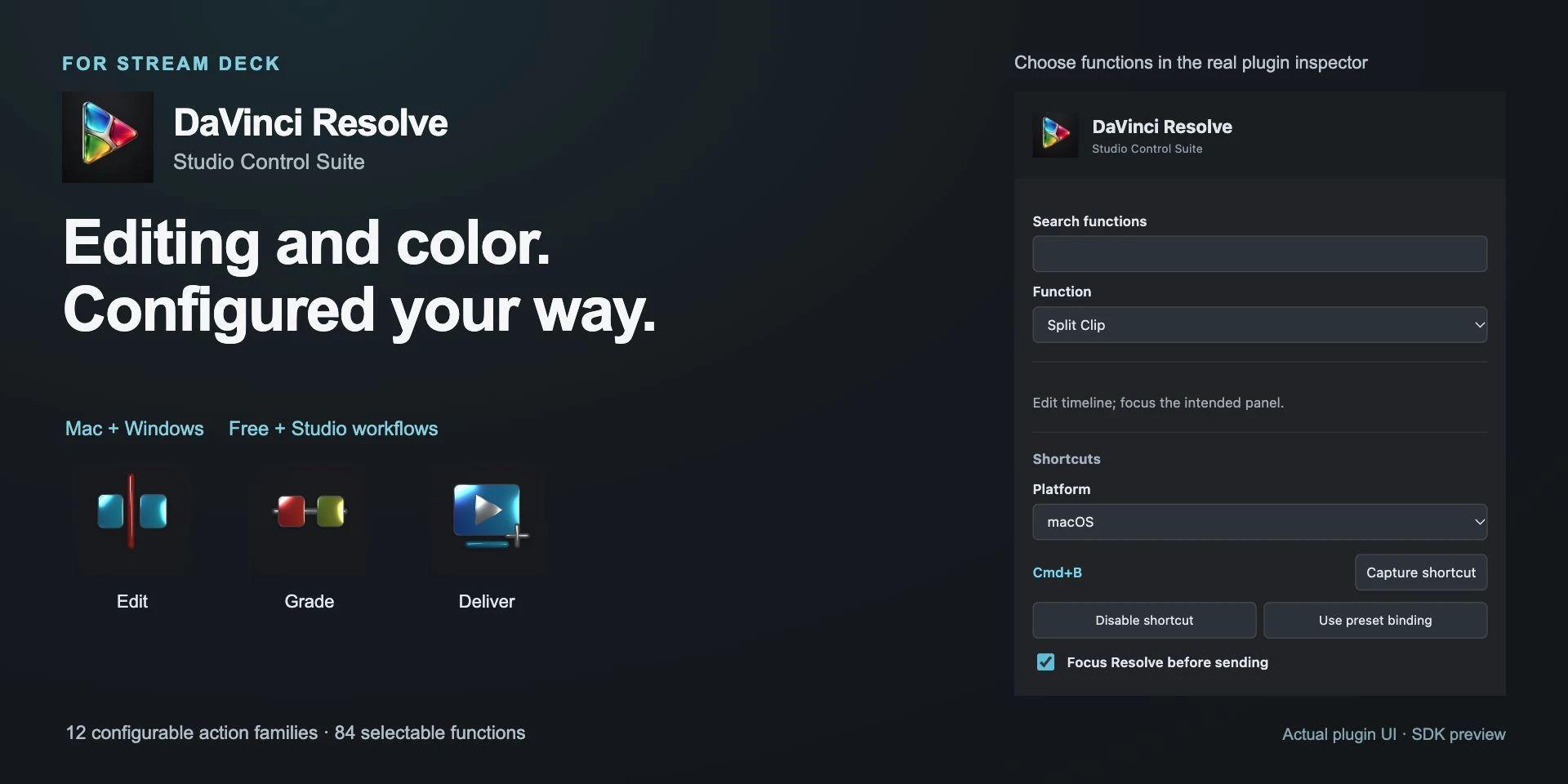
DaVinci Resolve Editing and Color: 84 functions in 12 families, with nine optional profiles.
Description
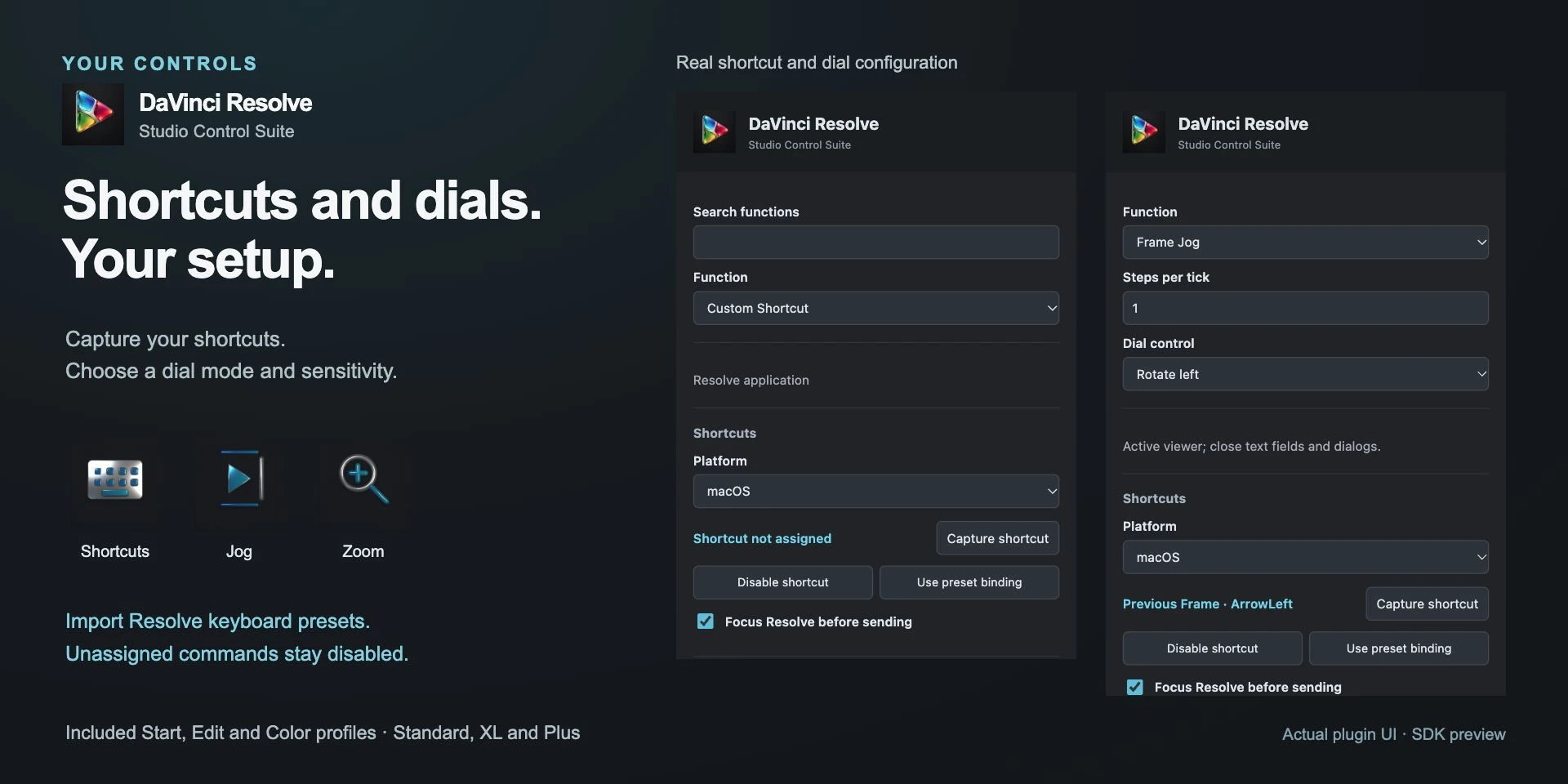
Transport, editing, trim, timeline, markers, nodes, grade versions, stills and printer lights. Twelve configurable families bring together 84 functions. Nine Start, Edit and Color profiles cover Standard, XL and Plus, with optional jog, zoom, trim and printer-light dials. Install from Elgato Marketplace. Choose a function in the inspector, then import the Resolve keyboard preset for your platform or capture your shortcuts. Each function and instance retains its settings. Unassigned commands remain disabled. Import profiles manually and test with the intended panel focused.
Features
- Transport, editing, trim, timeline, markers, nodes, grade versions, stills and printer lights. Twelve configurable families bring together 84 functions. Nine Start, Edit and Color profiles cover Standard, XL and Plus, with optional jog, zoom, trim and printer-light dials.
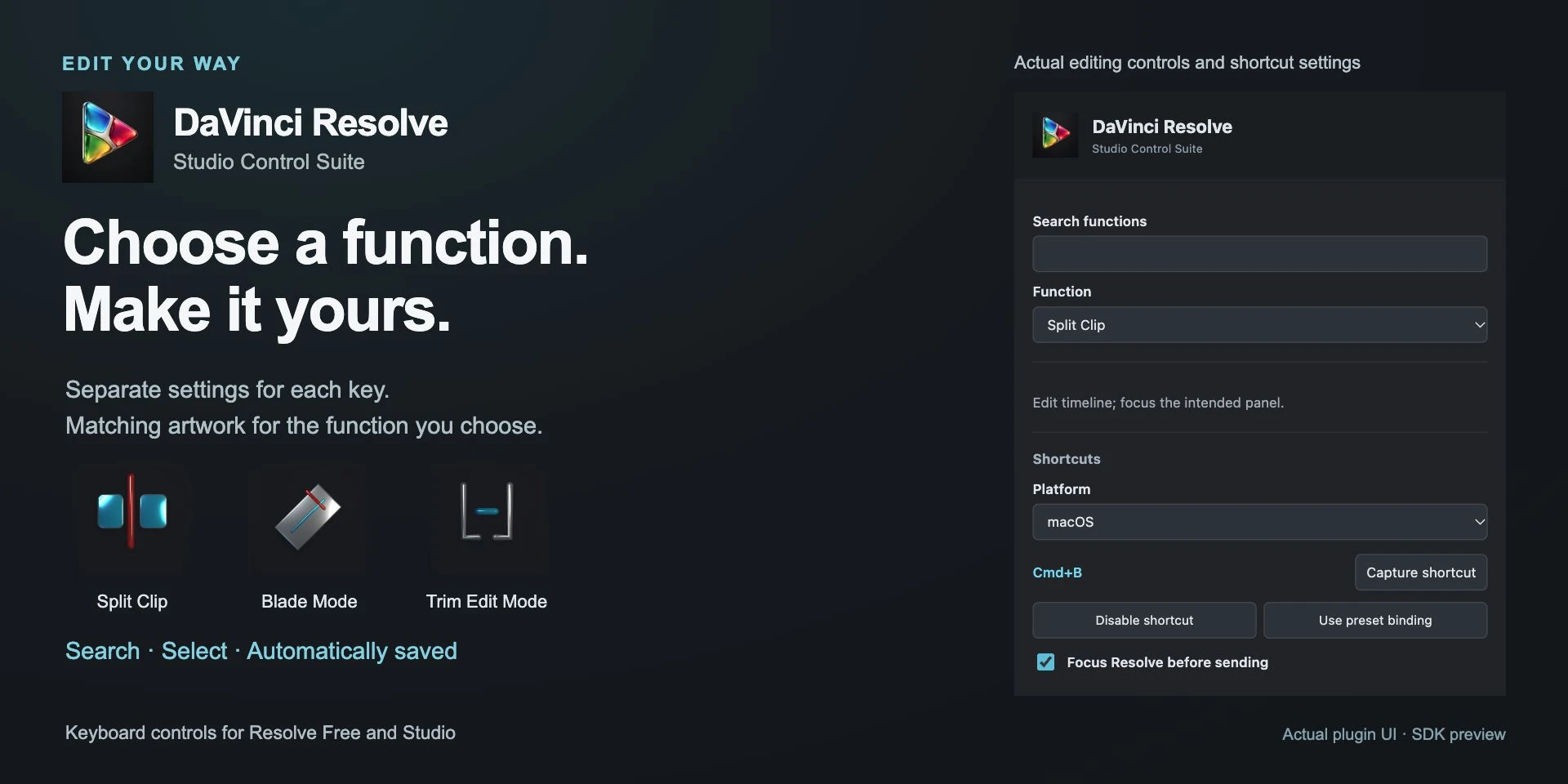
- Install from Elgato Marketplace. Choose a function in the inspector, then import the Resolve keyboard preset for your platform or capture your shortcuts. Each function and instance retains its settings. Unassigned commands remain disabled. Import profiles manually and test with the intended panel focused.
Available actions (12)
 Open ResolveOpen Resolve Install from Elgato Marketplace. Choose a function in the inspector, then import the Resolve keyboard preset for your platform or capture your shortcuts. Each function and instance retains its settings. Unassigned commands remain disabled. Import profiles manually and test with the intended panel focused.
  PagesPages Install from Elgato Marketplace. Choose a function in the inspector, then import the Resolve keyboard preset for your platform or capture your shortcuts. Each function and instance retains its settings. Unassigned commands remain disabled. Import profiles manually and test with the intended panel focused.
  TransportTransport Install from Elgato Marketplace. Choose a function in the inspector, then import the Resolve keyboard preset for your platform or capture your shortcuts. Each function and instance retains its settings. Unassigned commands remain disabled. Import profiles manually and test with the intended panel focused.
  Editing and TrimEditing and Trim Install from Elgato Marketplace. Choose a function in the inspector, then import the Resolve keyboard preset for your platform or capture your shortcuts. Each function and instance retains its settings. Unassigned commands remain disabled. Import profiles manually and test with the intended panel focused.
  TimelineTimeline Install from Elgato Marketplace. Choose a function in the inspector, then import the Resolve keyboard preset for your platform or capture your shortcuts. Each function and instance retains its settings. Unassigned commands remain disabled. Import profiles manually and test with the intended panel focused.
  Marks and MarkersMarks and Markers Install from Elgato Marketplace. Choose a function in the inspector, then import the Resolve keyboard preset for your platform or capture your shortcuts. Each function and instance retains its settings. Unassigned commands remain disabled. Import profiles manually and test with the intended panel focused.
  Color NodesColor Nodes Install from Elgato Marketplace. Choose a function in the inspector, then import the Resolve keyboard preset for your platform or capture your shortcuts. Each function and instance retains its settings. Unassigned commands remain disabled. Import profiles manually and test with the intended panel focused.
  Color ReviewColor Review Install from Elgato Marketplace. Choose a function in the inspector, then import the Resolve keyboard preset for your platform or capture your shortcuts. Each function and instance retains its settings. Unassigned commands remain disabled. Import profiles manually and test with the intended panel focused.
  Project and DeliveryProject and Delivery Install from Elgato Marketplace. Choose a function in the inspector, then import the Resolve keyboard preset for your platform or capture your shortcuts. Each function and instance retains its settings. Unassigned commands remain disabled. Import profiles manually and test with the intended panel focused.
  Custom ShortcutCustom Shortcut Install from Elgato Marketplace. Choose a function in the inspector, then import the Resolve keyboard preset for your platform or capture your shortcuts. Each function and instance retains its settings. Unassigned commands remain disabled. Import profiles manually and test with the intended panel focused.
  Configurable DialConfigurable Dial Install from Elgato Marketplace. Choose a function in the inspector, then import the Resolve keyboard preset for your platform or capture your shortcuts. Each function and instance retains its settings. Unassigned commands remain disabled. Import profiles manually and test with the intended panel focused.
  Resolve StatusResolve Status Install from Elgato Marketplace. Choose a function in the inspector, then import the Resolve keyboard preset for your platform or capture your shortcuts. Each function and instance retains its settings. Unassigned commands remain disabled. Import profiles manually and test with the intended panel focused.
 Known limitations
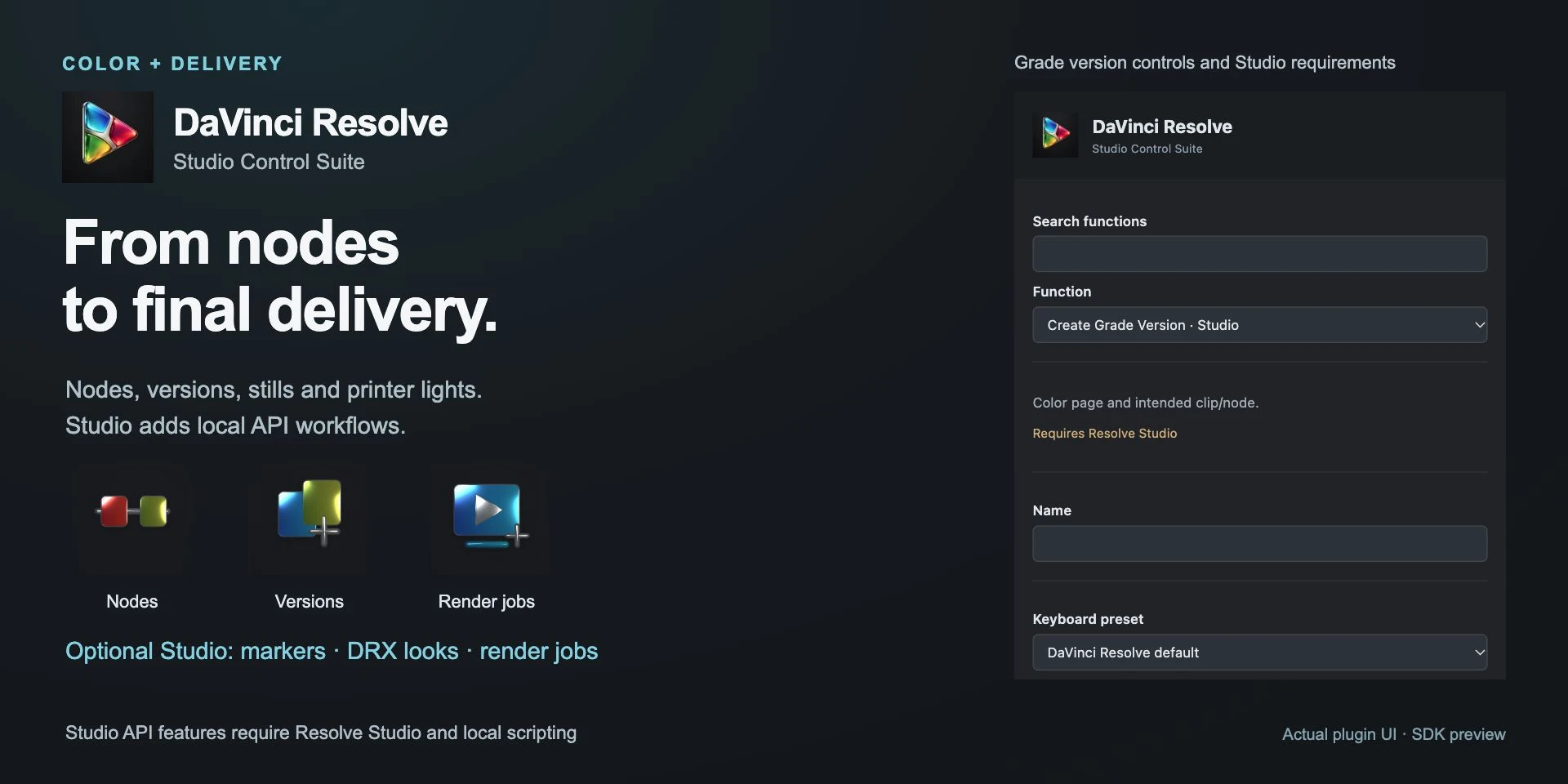
- Requires Resolve 21.1.1, Stream Deck 7.1+, Windows 11 x64 or Apple Silicon with macOS 15+. Keyboard controls work with Resolve Free; named markers, grade versions/DRX, render jobs and project state need a separate Resolve Studio license and Local scripting. Python is needed only for that optional integration. Representative native coverage; no physical hardware test.
Gallery
Documentation
Indicative price in Spain: €4.12
The final price may vary depending on country, taxes, and currency.
Purchase and installation are managed by Elgato Marketplace.