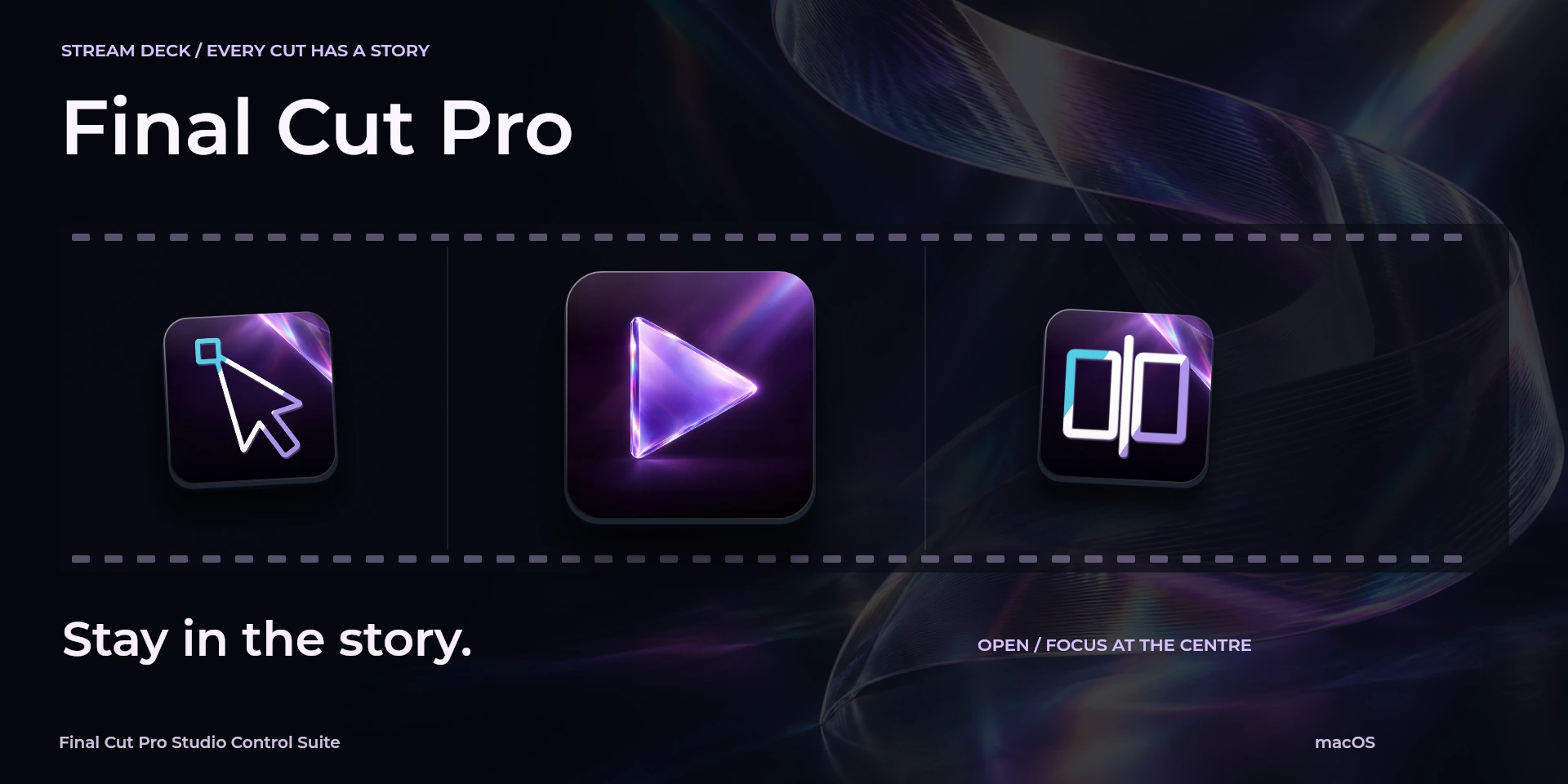

Final Cut Pro Studio Control Suite
Assemble your magnetic timeline and inspect frames and edit points in Final Cut Pro.
Price to be confirmed
Description
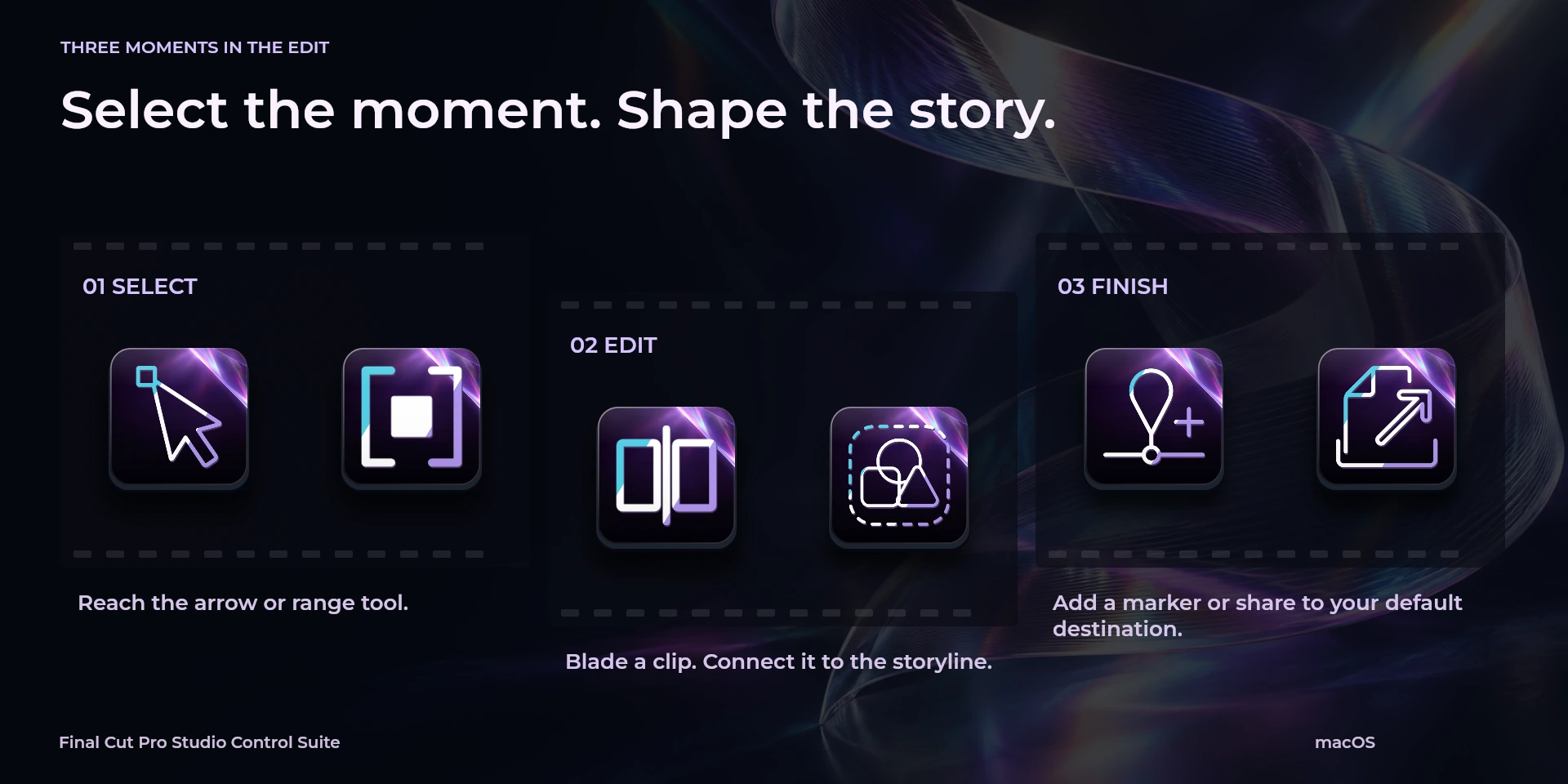
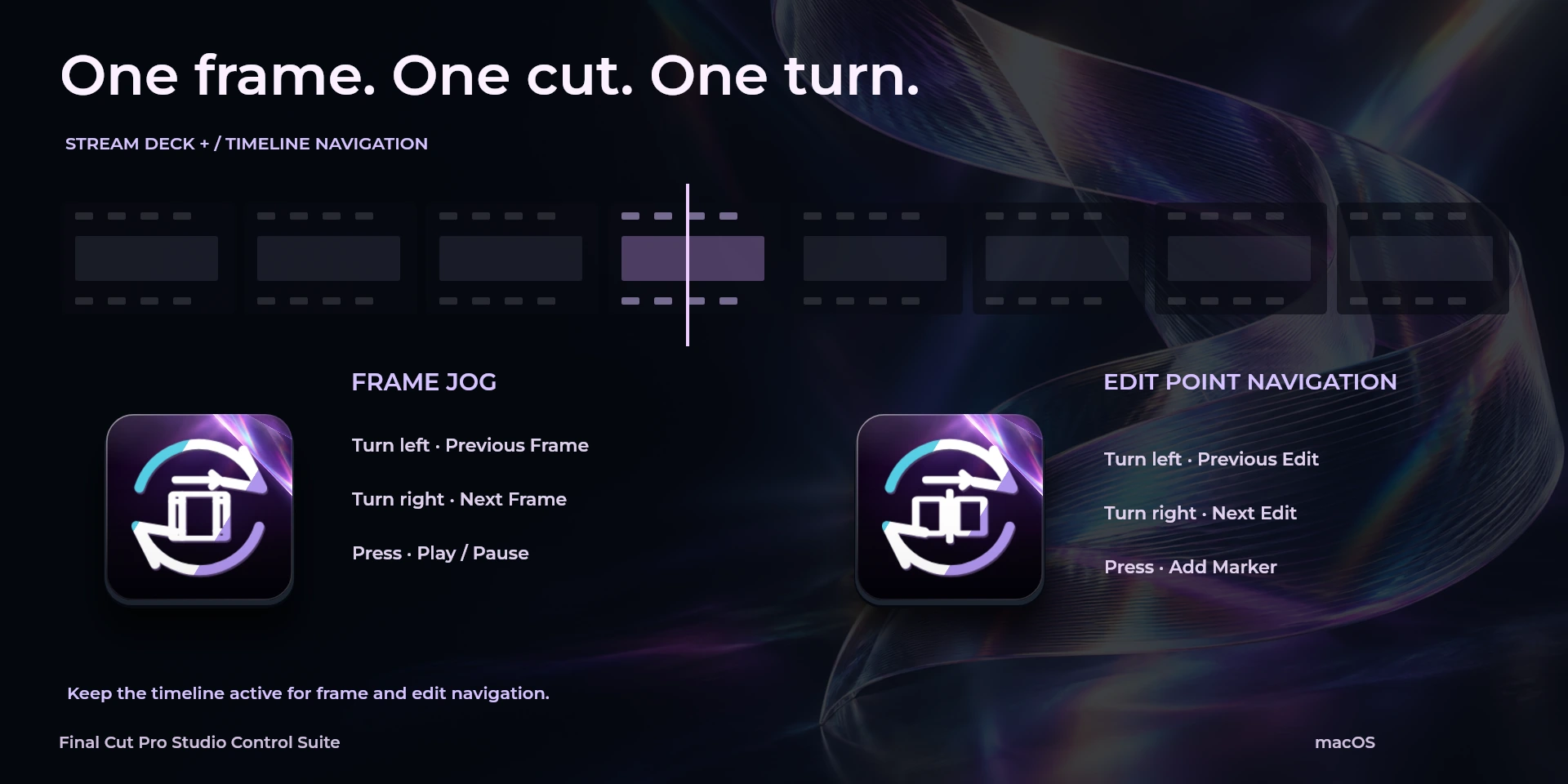
Build a magnetic timeline with controls for appending, inserting and connecting clips. Switch between selection, blade, trim and range tools, place markers and review the joins. Frame Jog checks motion one frame at a time, while Edit Point Navigation moves directly between neighboring cuts. The sharing command opens your configured default destination workflow. Designed for Final Cut Pro on macOS with the Default command set; keep the timeline active and account for the skimmer when choosing an edit point.
Features
- Assemble your magnetic timeline and inspect frames and edit points in Final Cut Pro.
- Assemble and review the magnetic timeline. macOS only: use the Default command set, focus the timeline and check whether the skimmer changes the edit point.
- Plugin minimums do not replace the application requirements. Check the installed version and its license.
Available actions (26)
 Open / Focus Final Cut ProOpens or focuses Final Cut Pro; it does not confirm document readiness.
  Play / PauseKeyboard shortcut for “Play / Pause” in Final Cut Pro. Check the active context before pressing.
  Stop PlaybackKeyboard shortcut for “Stop Playback” in Final Cut Pro. Check the active context before pressing.
  Previous FrameKeyboard shortcut for “Previous Frame” in Final Cut Pro. Check the active context before pressing.
  Next FrameKeyboard shortcut for “Next Frame” in Final Cut Pro. Check the active context before pressing.
  Previous EditKeyboard shortcut for “Previous Edit” in Final Cut Pro. Check the active context before pressing.
  Next EditKeyboard shortcut for “Next Edit” in Final Cut Pro. Check the active context before pressing.
  Select ToolKeyboard shortcut for “Select Tool” in Final Cut Pro. Check the active context before pressing.
  Blade ToolKeyboard shortcut for “Blade Tool” in Final Cut Pro. Check the active context before pressing.
  Blade at PlayheadKeyboard shortcut for “Blade at Playhead” in Final Cut Pro. Check the active context before pressing.
  Trim ToolKeyboard shortcut for “Trim Tool” in Final Cut Pro. Check the active context before pressing.
  Range Selection ToolKeyboard shortcut for “Range Selection Tool” in Final Cut Pro. Check the active context before pressing.
  Append to StorylineKeyboard shortcut for “Append to Storyline” in Final Cut Pro. Check the active context before pressing.
  Insert EditKeyboard shortcut for “Insert Edit” in Final Cut Pro. Check the active context before pressing.
  Connect to StorylineKeyboard shortcut for “Connect to Storyline” in Final Cut Pro. Check the active context before pressing.
  Add MarkerKeyboard shortcut for “Add Marker” in Final Cut Pro. Check the active context before pressing.
  Toggle SnappingKeyboard shortcut for “Toggle Snapping” in Final Cut Pro. Check the active context before pressing.
  Toggle SkimmingKeyboard shortcut for “Toggle Skimming” in Final Cut Pro. Check the active context before pressing.
  UndoKeyboard shortcut for “Undo” in Final Cut Pro. Check the active context before pressing.
  RedoKeyboard shortcut for “Redo” in Final Cut Pro. Check the active context before pressing.
  Share to Default DestinationKeyboard shortcut for “Share to Default Destination” in Final Cut Pro. Check the active context before pressing.
  Frame JogTurn left or right and review the shortcuts assigned to each direction and press.
  Edit Point NavigationTurn left or right and review the shortcuts assigned to each direction and press.
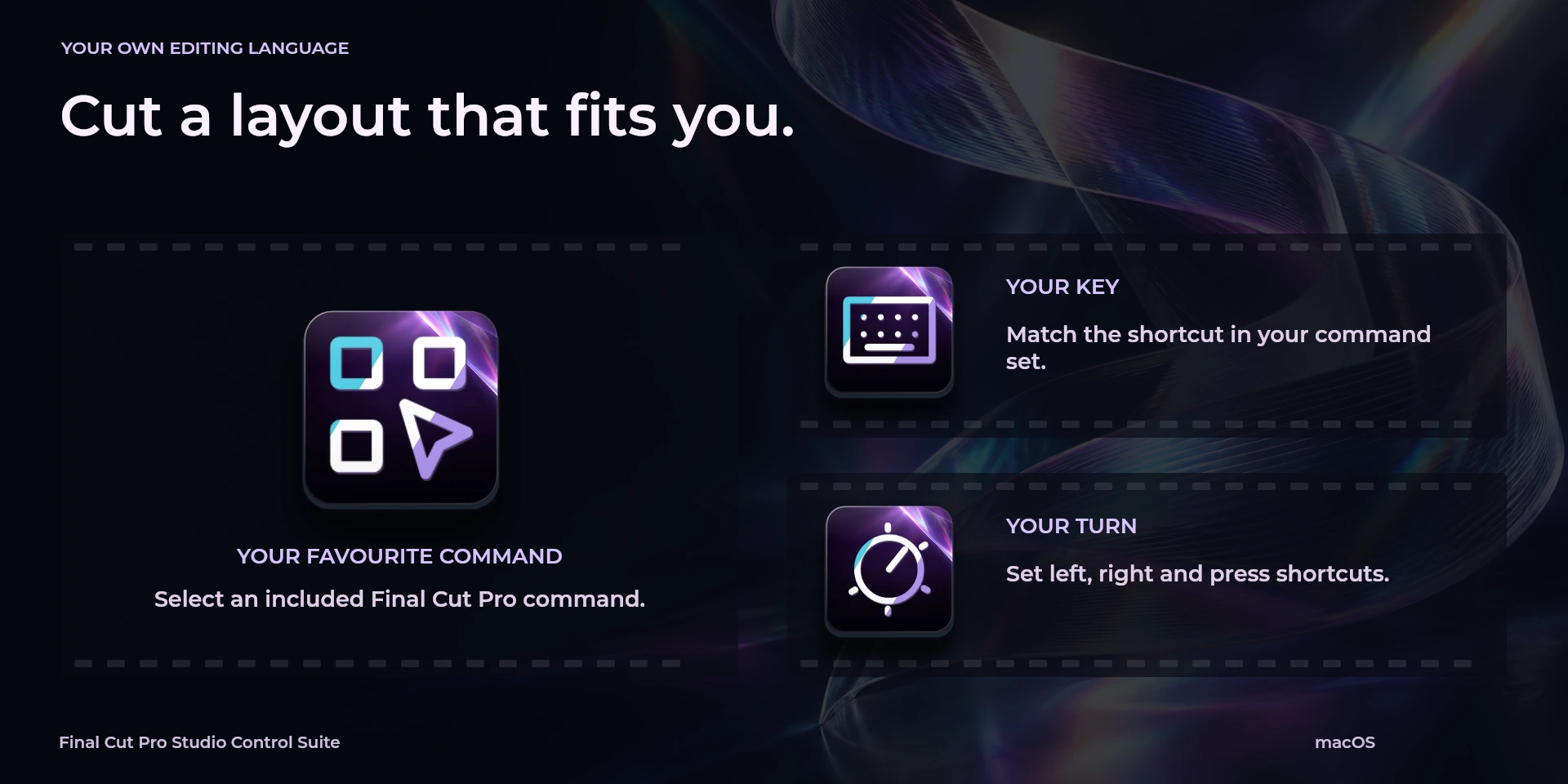
  Choose CommandSelect a command from the inspector library and review its shortcut.
  Custom ShortcutDefine your own shortcut in the inspector; it must match the application.
  Custom DialTurn left or right and review the shortcuts assigned to each direction and press.
 Known limitations
- Keyboard control: no live state, application API, MIDI or telemetry. Results depend on the active panel, selection and your keymap.
- Plugin minimums do not replace the application requirements. Check the installed version and its license.
- Plugin command names are English; the shared inspector has eight languages. These are separate from this website’s ten languages.
Gallery
Documentation
Requirements
Workflow
Final Cut Pro
Assemble and review the magnetic timeline. macOS only: use the Default command set, focus the timeline and check whether the skimmer changes the edit point.
Transport
Navigation
Tools
Editing
Markers
Document
Before using the controls
Assemble and review the magnetic timeline. macOS only: use the Default command set, focus the timeline and check whether the skimmer changes the edit point.
Keyboard control: no live state, application API, MIDI or telemetry. Results depend on the active panel, selection and your keymap.